|
Return Create A Forum - Home |
 |
--------------------------------------------------------- |
|
IMVUElite |
 |
https://imvusins.createaforum.com |
|
--------------------------------------------------------- |
|
***************************************************** |
|
Return to: Creating |
|
***************************************************** |
|
#Post#: 86-------------------------------------------------- |
|
How to Uncheck a mesh ID |
|
By: Lags Date: December 29, 2017, 12:32 am |
|
--------------------------------------------------------- |
|
https://miakascreations.com/images/mesh-id-article-image.jpg |
|
Now this little task sounds very simple and in theory it really |
|
should be, but this is just one of those annoying IMVU bugs that |
|
can really ruin your day. |
|
Why would I want to uncheck a mesh ID you ask? Well, the mesh |
|
IDs are used to designate where your mesh will show up on the |
|
avatar or furniture or room. The avatar is made up of 10 basic |
|
mesh ID numbers that replace the different body parts. You can |
|
test them out by unclicking each one, then clicking "Apply |
|
Changes" to see which part disappears. For example, mesh ID 0 |
|
will cause the head to disappear and whatever mesh you are |
|
uploading will take that mesh ID spot. All meshes need to be |
|
placed in at least one mesh ID spot. The system is useful for |
|
when you want to put on a new body part. You apply a new head in |
|
client and the old one disappears. Otherwise you would have on 2 |
|
heads at the same time and that would look ridiculous. The mesh |
|
IDs for furniture and rooms are only important for that |
|
particular item. You have 99 IDs to work with and, unless you |
|
are making a very elaborate room, I doubt you'll come close to |
|
using all of the IDs up. |
|
@God |
|
The only time mesh IDs are a pain in the patooty are when you |
|
are tying to apply an accessory item derived from clothing. When |
|
you make a clothing accessory item, you still have to choose a |
|
number between 11 and 99 for the mesh. Unfortunately with |
|
millions of products in the catalog, there is a pretty good |
|
chance that there will be a couple other products that use that |
|
same number and they will disappear as soon as your product is |
|
applied and visa versa. |
|
This isn't the case for accessories derived from the main |
|
accessory product, the sunglasses. So I guess you are wondering |
|
why I don't just derive my accessories from the sunglasses. |
|
Well, there is a small issue with that. You can't add animations |
|
to those accessories. They made an empty clothing item for |
|
deriving, and that's all fine and dandy, but they don't give you |
|
the option to put that item in any accessory category in the |
|
catalog, and how are people suppose to buy your stuff if it's |
|
not filed right? The only way to get an animated accessory into |
|
any accessory catagory is to derive from a clothing item that |
|
was put in an accessory catagory before IMVU made it's new (not |
|
so new anymore) all inclusive chat and editor client....which I |
|
have. |
|
In case you wanted to derive from it, here it is. :) |
|
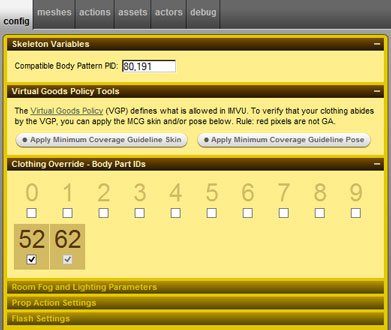
So what about that bug again? Oh yes. So you derive from my |
|
empty clothing item and you will find that the mesh ID number |
|
used in the product is 52, but you don't want 52 because you |
|
have a few other things that are already 52, so you uncheck 52 |
|
and upload your awesome pose pack only to find that when you put |
|
on your new pose pack, your purse disappears because it is also |
|
using mesh ID number 52, so you go back into Create Mode to edit |
|
your pose pack only to find that 52 is checked again!!? This |
|
here is the problem. Let me show you how to solve it. |
|
https://miakascreations.com/images/phocagallery/blog_images/mesh%20id/thumbs/ph… |
|
Ok, so you have your product all ready to go and the last thing |
|
you need to do is to get rid of that unwanted mesh ID number. |
|
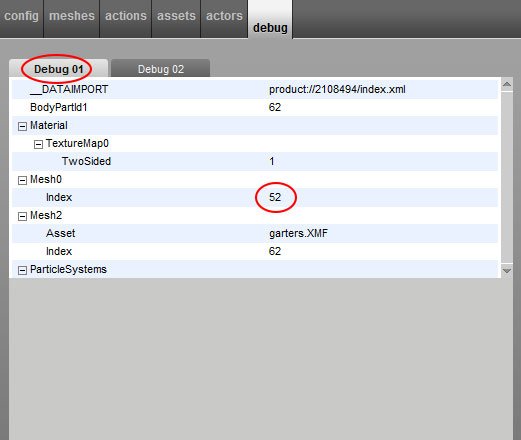
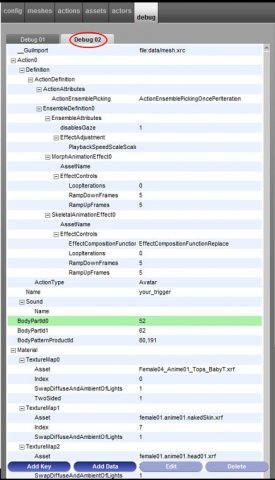
Click over to the debug tab. Under the debug tab there is Debug |
|
01 and Debug 02. Starting with Debug 01, find evey single |
|
instance of the number you want to get rid of, in this example |
|
it is 52. Mesh ID 62 is the number that I would like to use for |
|
this product. |
|
https://miakascreations.com/images/phocagallery/blog_images/mesh%20id/thumbs/ph… |
|
Click on the number you want to get rid of and look to the |
|
bottom of the tab and click on the Edit button. |
|
https://miakascreations.com/images/phocagallery/blog_images/mesh%20id/thumbs/ph… |
|
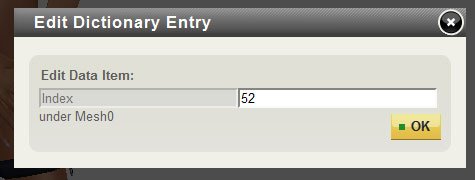
A window will pop up where you will change the offending number |
|
(52) to the number you want (62) and hit OK. |
|
https://miakascreations.com/images/phocagallery/blog_images/mesh%20id/thumbs/ph… |
|
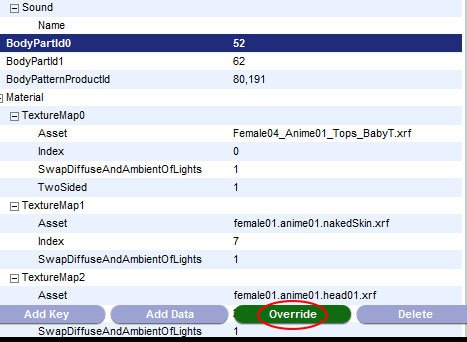
Click Debug 02 and you will find more offending numbers. Again |
|
click on the offending number. |
|
https://miakascreations.com/images/phocagallery/blog_images/mesh%20id/thumbs/ph… |
|
Look to the bottom of the tab and click on "Override." |
|
https://miakascreations.com/images/phocagallery/blog_images/mesh%20id/thumbs/ph… |
|
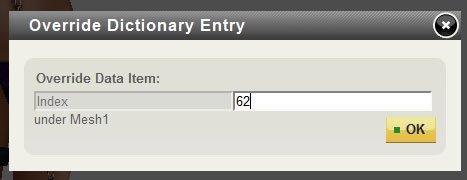
Again a window will pop up. For every single entry you find of |
|
the number you don't want, change it to the number you do want |
|
and hit OK. |
|
https://miakascreations.com/images/phocagallery/blog_images/mesh%20id/thumbs/ph… |
|
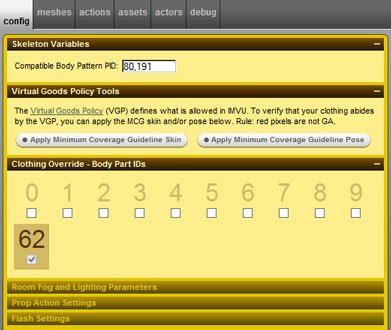
After you have gone through and changed all of the numbers, you |
|
can click back over to the config tab and your unwanted number |
|
is gone! But only if you got every single one |
|
https://miakascreations.com/images/phocagallery/blog_images/mesh%20id/thumbs/ph… |
|
Word of advise. DO NOT UNCHECK THE NUMBER ON THE CONFIG TAB! If |
|
you do the bugs will show up and put the number back even if you |
|
do everything in the debug tab. |
|
***************************************************** |